Actions overview
The six actions a chatbot can take, which run immediately and which are confirmed first, and the guardrails around outbound calls.
Beyond answering questions, a chatbot can do things during a conversation: look up an order, capture a lead, escalate to a person, book an appointment, create a ticket, or call an endpoint you configure.
Actions are enabled per chatbot by an owner or admin — see Configuring an action.
The actions
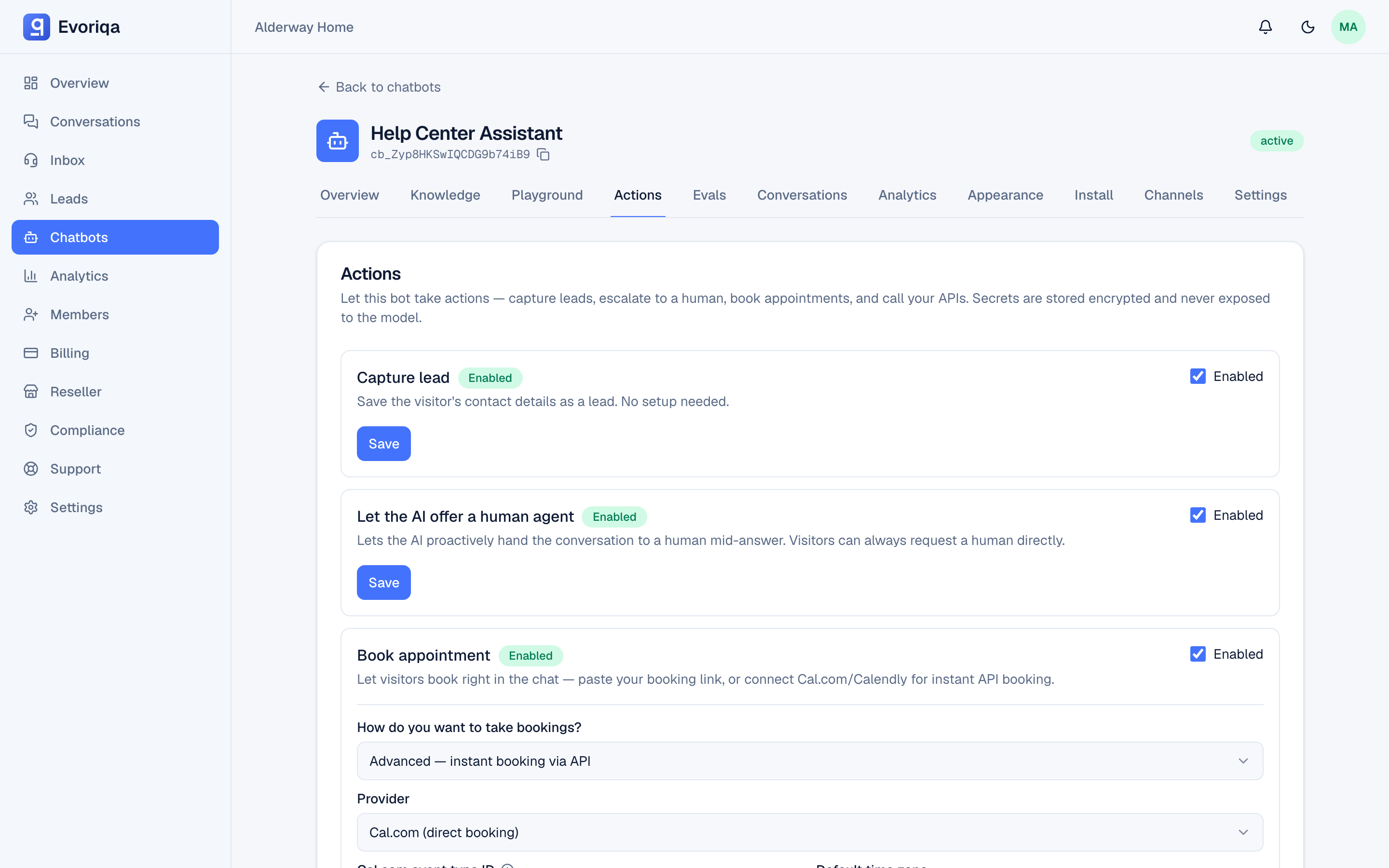
The Actions tab lists them by name; the tool name in brackets is what appears in an action-run record.
| On the Actions tab | What it does | Confirmed first? |
|---|---|---|
Capture lead (capture_lead) | Saves the visitor's contact details as a lead. No setup needed. | No |
Let the AI offer a human agent (escalate_to_human) | Lets the AI hand the conversation to a person mid-answer. Visitors can always ask for one directly. | No |
Look up order (lookup_order) | Reads an order from an endpoint you configure. | No |
Book appointment (book_appointment) | Opens an in-chat booking calendar (Simple or Connected mode), or books via Cal.com/Calendly or a webhook (Advanced mode). | Advanced only |
Create ticket (create_ticket) | POSTs a support ticket to your endpoint. | Yes |
HTTP action (http_action) | A general outbound call to a URL you allow. | Yes |
Booking is the one split case. In Simple mode (paste a booking link) and Connected mode (one-click account) the agent opens a booking calendar right in the chat and nothing fires from the chat side, so there is no confirm step; in Advanced mode it books directly through the provider API and is confirmed first, like the other writes. See Configuring an action.
Advanced bookings can optionally let customers cancel or reschedule the bookings the agent made — see Booking with Cal.com or Calendly.
Bookings also stay in sync when they change outside the chat — a customer cancelling from the provider's e-mail, a Calendly invitee moving the slot through their own link, a Cal.com host accepting or declining a request. Advanced and Connected bookings, and the in-chat calendar's bookings, update automatically; see Live sync on Booking with Cal.com and Calendly.
A seventh tool, get_appointment_slots, is derived rather than configured: when booking is enabled in Advanced or Connected mode on a provider that publishes availability (both Cal.com and Calendly), the agent can fetch real open slots before proposing a time. On the widget those slots render as tappable chips in the visitor's own browser timezone. In Advanced mode tapping a chip books that slot directly; in Connected mode it opens the embedded calendar pre-targeted at that slot, so the visitor confirms on the provider's own page. It has no settings of its own and does not appear in the actions list. Simple mode has no slot chips — availability lives inside the embedded calendar.
Both Simple and Connected mode can also show a persistent "Book a meeting" chip in the widget, so a visitor can open the calendar at any time — even if the AI never offers it. The chip is on by default and can be toggled off per chatbot; see Configuring an action.
Reads run; writes are confirmed
Reads and internal actions run in-loop — the agent calls them mid-answer and folds the result into its reply.
Anything that writes to an external system is proposed first. The agent reads back what it is about to do, and only executes after the visitor explicitly agrees on their next turn. A confirmed action fires exactly once, even if the visitor confirms twice in quick succession.
That read-back is the only question the agent asks. It does not first ask "would you like me to book it?" in its own words: once it has what the action needs — a slot you asked for as "the earliest" or "the next available" counts as your choice, and a named or sole appointment needs no "is this the one?" — it calls the tool and the read-back follows. An email or phone number is still read back first so a mishearing never lands in a booking.
Saying no is read in two ways. A bare "no" ("no thanks", "no, leave it") gets a short decline and nothing else happens. A refusal that carries a reason, a counter-offer or a new request — "no, Thursday works better", "sorry, something came up, please cancel my appointment", any date or time — drops the proposal and is answered, and the agent does not propose what you just declined again.
An extra "yes" after an action already ran never repeats it. The framework remembers what it did for this customer: a booking of the same slot for the same email, any booking for that email made in the same conversation in the last 15 minutes (unless you explicitly ask for a second appointment), a cancel of a booking already cancelled, a move to the time a booking already has or a further move minutes after one the agent made — each comes back as "already done" and the provider is not called again. "Cancel my appointment" right after a cancel gets "that was already cancelled", not a handoff to your team.
The visitor can agree or decline in their own language — any of the 32 the chatbot supports. Keep it short: in most of them the agreement counts only when it is the whole message ("Tak", "はい"), not a word inside a longer sentence. An unclear answer just makes the agent ask again — it never runs an action on one. See Languages.
On the widget you see a live status chip while a tool runs. On voice, the read-back is spoken and the confirmation is verbal.
Guardrails
- Per-bot enable. Nothing runs unless you switched it on for that chatbot.
- Host allowlist. Outbound calls go through a protected fetcher restricted to the hosts configured for that action; private and internal addresses are refused.
- Encrypted secrets. API keys used by an action live in an encrypted vault and are never shown to the model. See Credentials.
- Metered and logged. Every run is metered and written to an action-run audit record. The chatbot's Actions page has a Recent runs panel that lists them — time, action, status, error message, and latency, with filters and pagination — so you can see exactly what the agent did and when. Search matches anywhere in a run's input or its error text, and Details on a row opens the full, untruncated input and error. Runs are kept 90 days (less if the workspace's retention window is shorter).
Where to go next
Last updated