Bulk actions
Select several chatbots and activate or deactivate them in one operation, including what happens when activating hits your plan limit.
The chatbot list supports selecting several chatbots and changing their status in one go. It is the quickest way to park a set of seasonal bots, or to bring a group back after an upgrade.
What bulk mode supports
Exactly one operation: set status, to either active or inactive. Up to 200 chatbots per operation.
Bulk mode does not delete chatbots, does not edit settings, and does not touch knowledge sources. Those stay per-chatbot, deliberately — see Chatbot settings.
How to use it
- 1Open Chatbots.
- 2Tick the chatbots you want to change.
- 3Choose Activate or Deactivate.
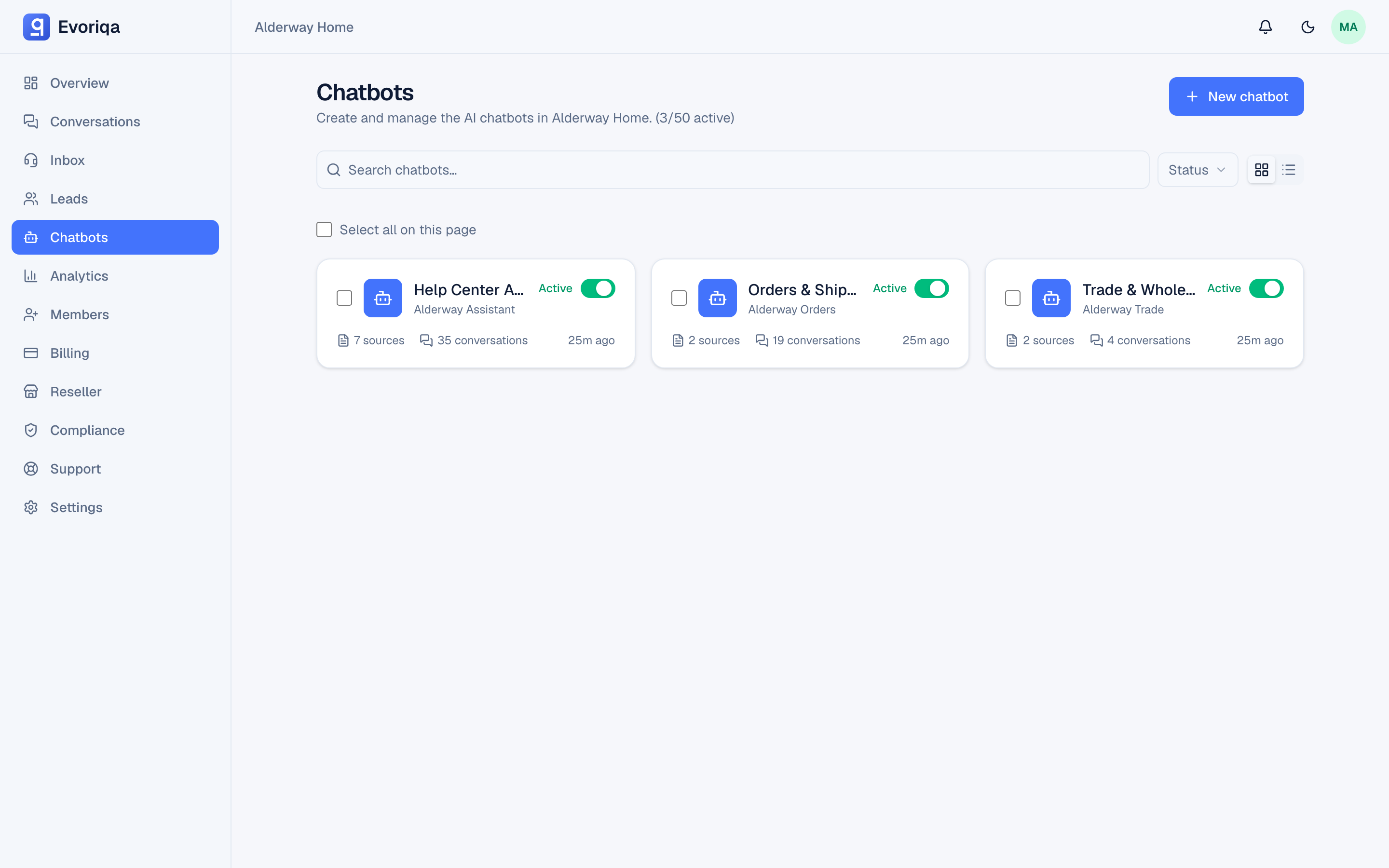
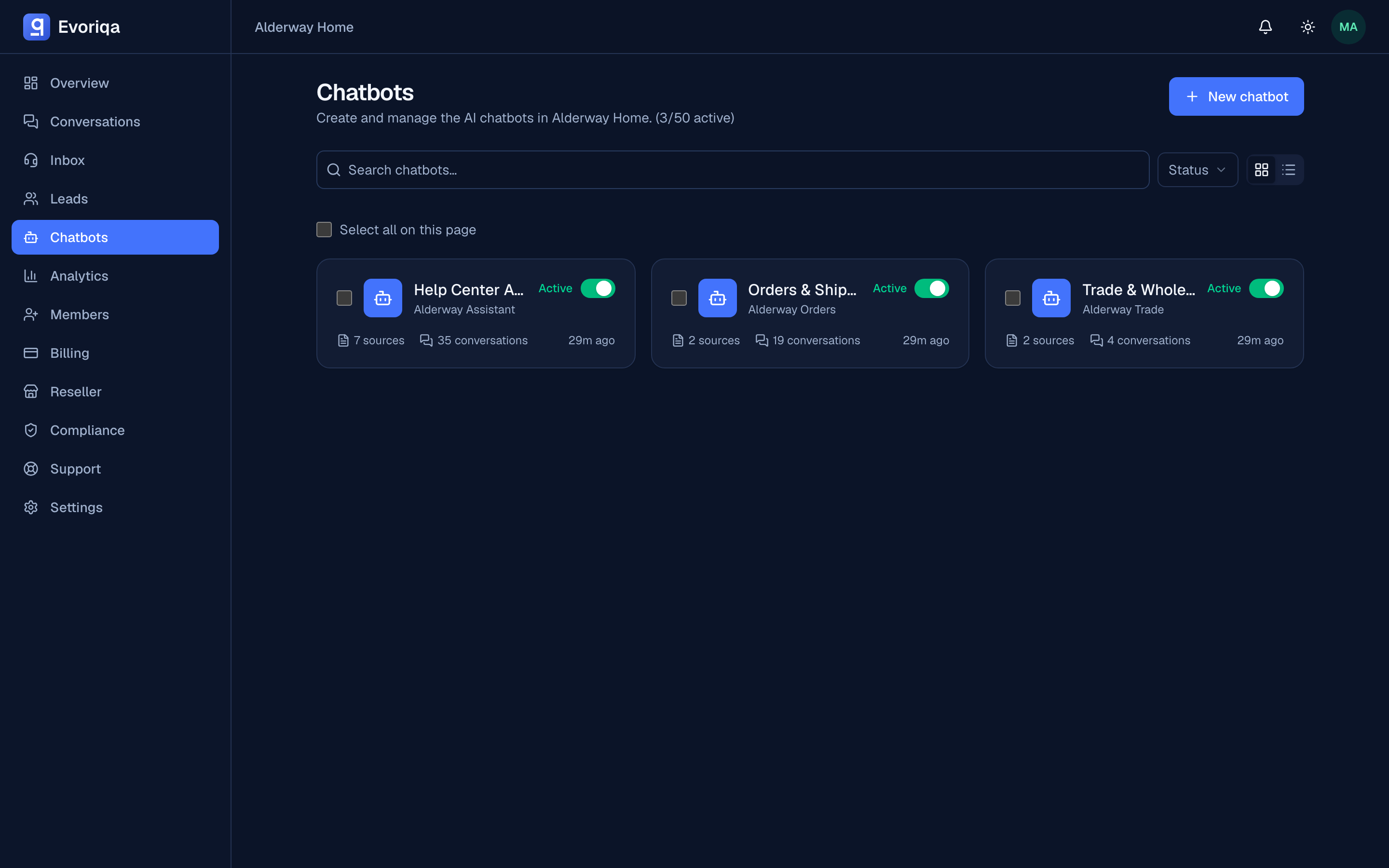
Deactivating is always allowed. Activating is checked against your plan's limit on active chatbots.
When activating hits the plan limit
If activating the selection would take you over the limit, nothing changes — the whole operation is rejected with a message naming the limit, for example:
Enabling these would exceed your plan's limit of 5 active chatbots.
Enable fewer or upgrade your plan.Deactivate something else, select fewer chatbots, or upgrade the plan, then try again. Bulk activation is deliberately all-or-nothing: a partial result would leave you guessing which bots are live.
The check and the update run under one lock per workspace, so two people activating at the same time cannot both slip past the limit.
Where to go next
- Create a chatbot — what active and inactive mean.
- Plans — which limits apply to your workspace.
Last updated