Business hours
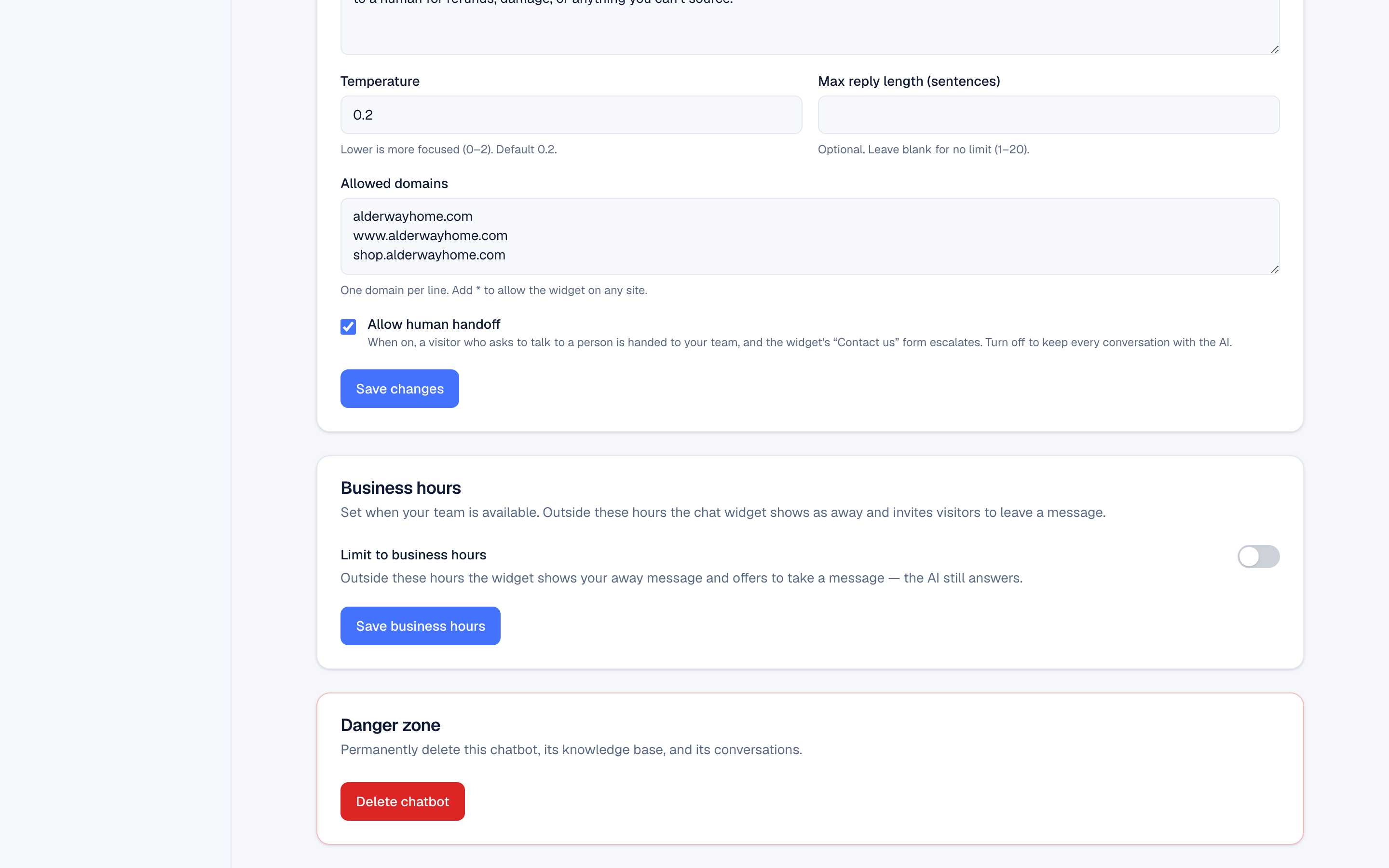
Set a weekly schedule in the chatbot's own timezone, and see exactly what changes for a visitor who arrives outside those hours.
Business hours tell visitors when a human is around. They are set per chatbot, not per workspace, so a sales bot and a support bot can keep different hours.
Open the chatbot and choose Business hours. Owners and admins can edit them; everyone else sees them read-only.
The schedule model
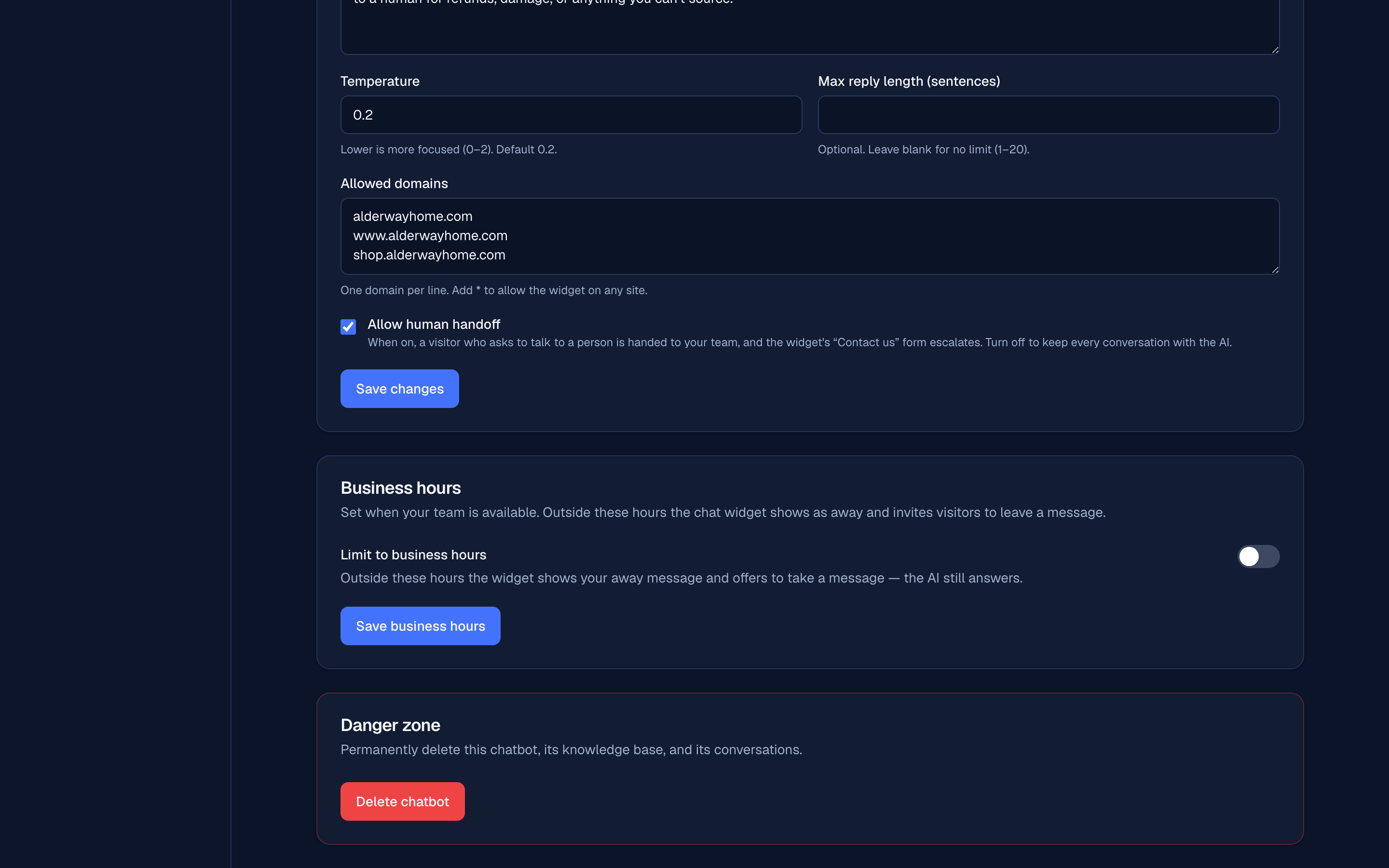
- Enabled — off by default. While off, the chatbot is always treated as open.
- Timezone — one IANA timezone (for example
Europe/London), stored on the chatbot. Hours are evaluated in this timezone, never the visitor's and never the browser's, so the answer is the same for everyone. - Schedule — one optional open/close slot per weekday, each in 24-hour
HH:MMform. A day with no slot is closed all day. - Away message — up to 500 characters, shown to visitors outside hours.
Slots that need care
| Slot | Result |
|---|---|
09:00–17:00 | Open between those times. |
22:00–06:00 | An overnight window. It wraps past midnight into the next morning. |
00:00–23:59 | Open all day. |
00:00–00:00 | Closed all day — equal open and close times read as closed, not as 24 hours. |
| no slot | Closed all day. |
If a day's times are malformed, the chatbot fails open for that day rather than silently going away — a broken row never takes your chatbot offline.
What changes outside hours
Being outside business hours does not switch the AI off. Concretely:
- The widget's status line reads "Away — we'll follow up" instead of "Online".
- A note is shown at the start of the chat: your away message, or the default "Our team is away right now, but I can still help — ask me anything."
- The AI still answers every question from your knowledge base.
- Lead capture still runs. Off-hours is exactly when an async follow-up matters, so a pre-chat lead form is not skipped. See Lead capture settings.
- Handoff requests are still recorded and appear in the Inbox for your team in the morning.
The status line and that default away note are shown in the widget's language — the chatbot's pinned language, else the visitor's browser language, else English. An away message you wrote yourself is shown exactly as written, never translated. See Languages.
To stop a chatbot answering entirely, set its status to inactive instead — see Create a chatbot.
The widget reads the open/closed flag from a config response cached for up to 60 seconds, so the status line can lag your schedule by about a minute. Saving settings clears the cache immediately.
Where to go next
- SLA and escalation — what happens when a handoff waits too long.
Last updated