Lead capture settings
Turn lead capture on, choose when the form appears, and route new leads automatically — including the one-time backfill.
A lead is a captured contact: name, email, phone, company, and message. Leads arrive from three places — the widget's lead form, the agent's capture_lead action, and the public lead API.
Turning capture on
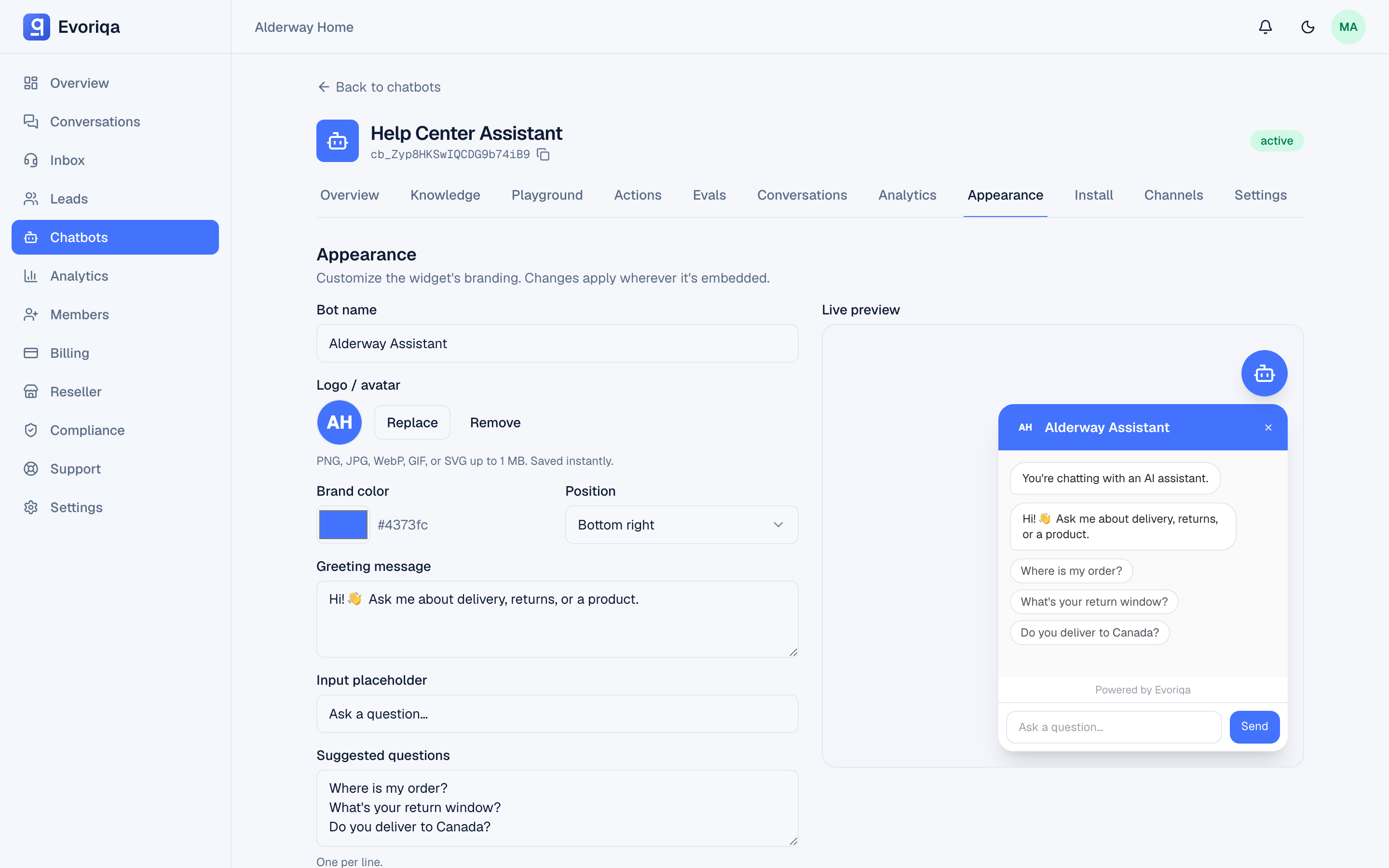
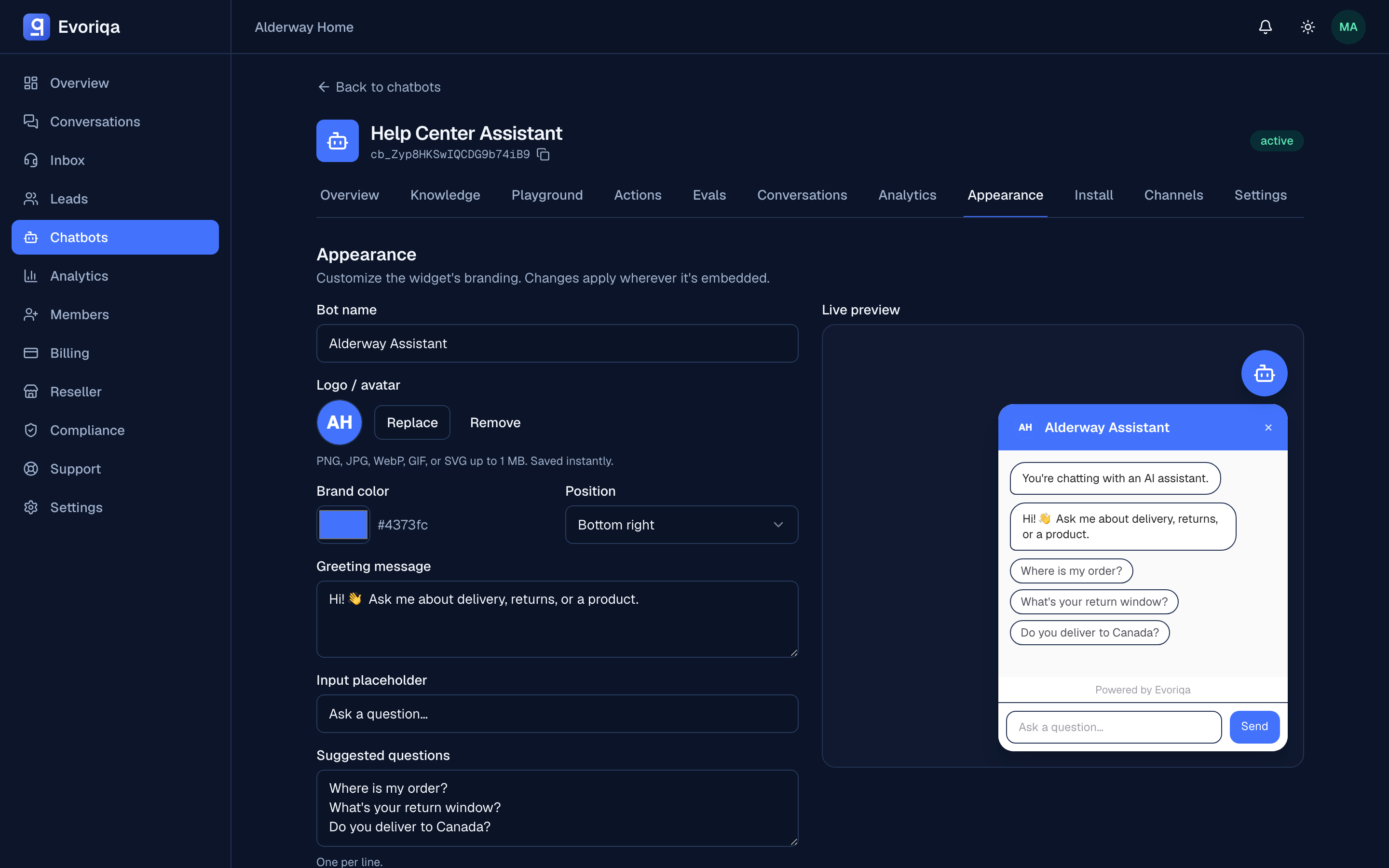
Collect leads is a per-chatbot setting on the Appearance tab. With it on, choose when the form is shown:
| Timing | The form appears… | Good for |
|---|---|---|
before_chat | Before the visitor can type | Sales-led sites where every contact matters |
after_first_response | Once the agent has answered once | The usual balance — help first, then ask |
on_handoff | When the visitor asks for a human | Support-led sites; guarantees a reply route |
manual | Only when the agent's capture_lead action asks for it | Conversational capture |
Phone numbers are validated inline, so a mistyped number is caught while the visitor is still there.
before_chat also runs outside business hours — off-hours is exactly when being able to follow up matters most, so the form is not skipped. See Business hours.
Auto-assignment
Under Settings → Leads (owners and admins), auto-assign routes each new lead to the least-loaded workspace member. It is off by default.
Alongside it sits a one-time backfill that assigns existing unassigned leads the same way. Run it once after switching auto-assign on; otherwise your history stays unowned while new leads get owners.
Changing either setting is recorded in the audit log.
Owner notifications
The workspace owner is emailed when a lead is captured, so a lead does not wait for someone to open the dashboard. A repeat capture of the same person within ten minutes sends no second email. After 30 leads in an hour, the next lead's email says alerts are paused, and no more are sent until the hour is up. Every lead still lands in Leads and still fires its lead.created webhook.
Where to go next
- Configuring an action — the
capture_leadpath.
Last updated