Create a chatbot
Create a chatbot from scratch, work through its setup checklist, and understand what the active and inactive statuses mean.
A chatbot is one configured AI agent, with its own knowledge base, channels, appearance, and settings. A workspace can hold several — the number of active chatbots is capped by your plan.
Create one
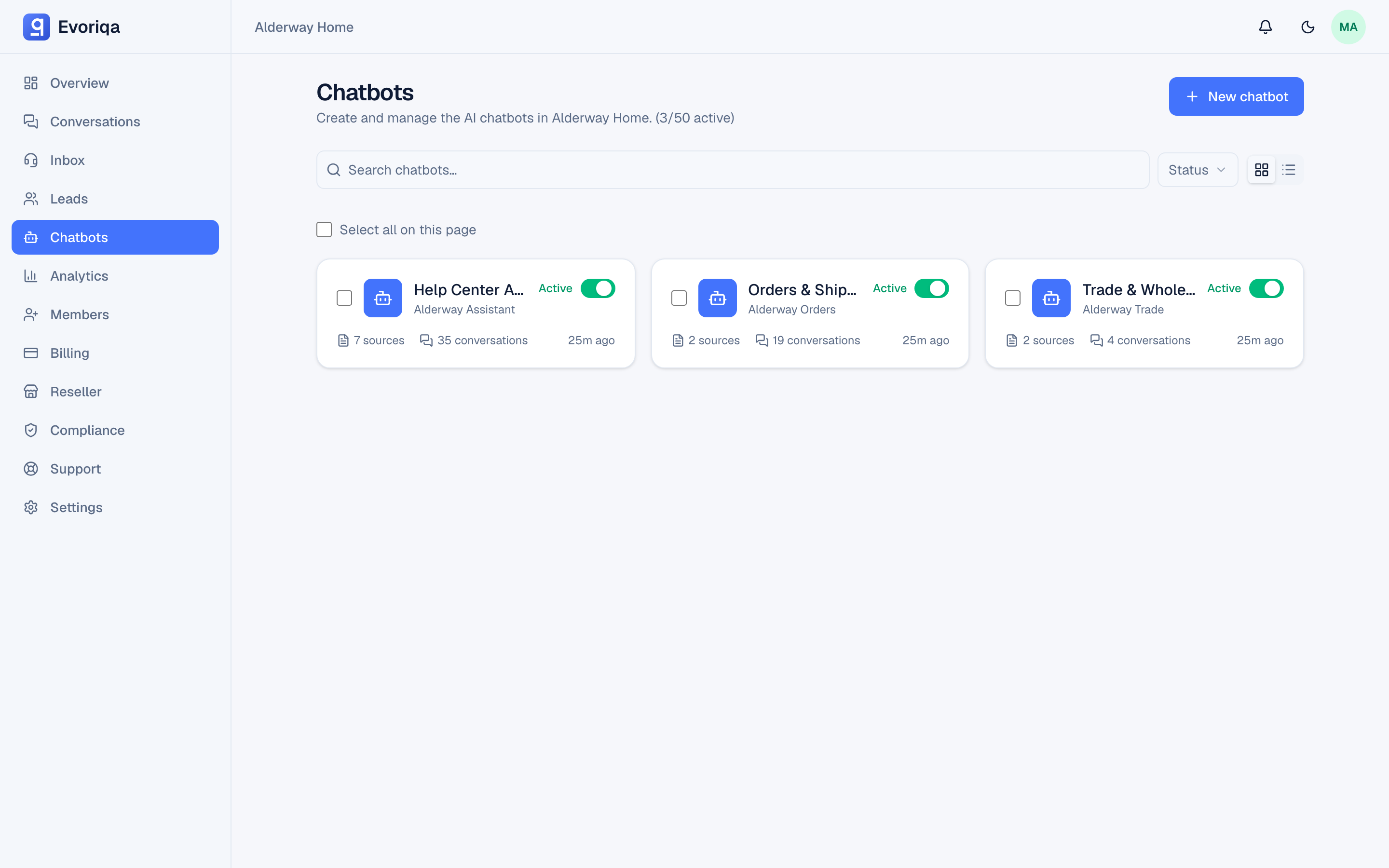
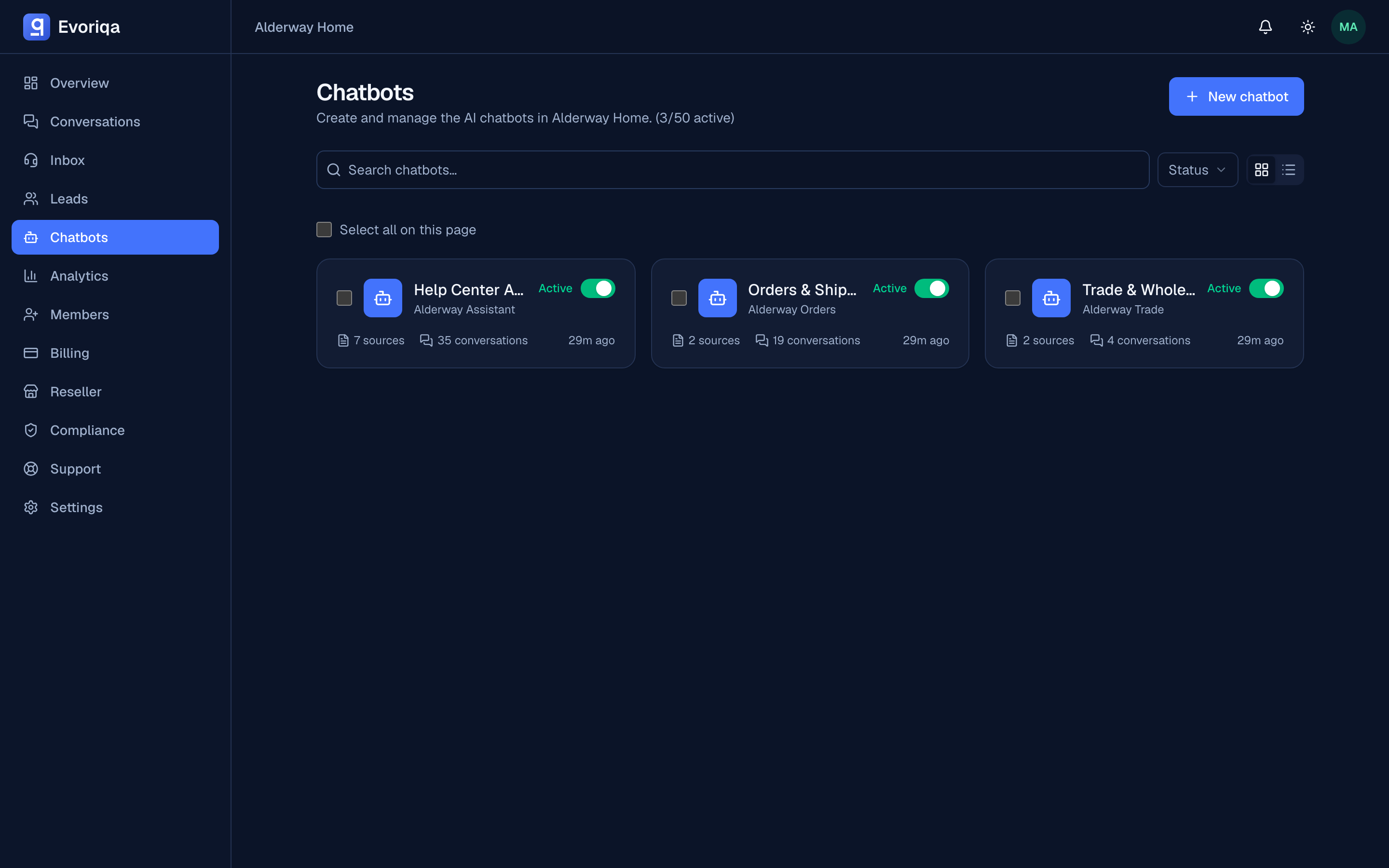
Open Chatbots and choose New chatbot. Only the name is required; every other field can be set now or changed later.
| Field | What it does | Limit |
|---|---|---|
| Name | The internal name, shown in the dashboard only | 1–120 chars |
| Bot name | The name visitors see; defaults to the internal name | 1–120 chars |
| Description | A note for your team | ≤ 2,000 chars |
| Tone | helpful, friendly, professional, casual, or concise | defaults to helpful |
| Greeting message | The first thing the widget says | ≤ 500 chars |
| Fallback message | What the agent says when it cannot answer from your knowledge | ≤ 500 chars |
| Primary colour | The widget's brand colour | hex |
If you do not pick a primary colour, a new chatbot inherits your organisation's brand colour when one is set (reseller organisations), and the product default otherwise.
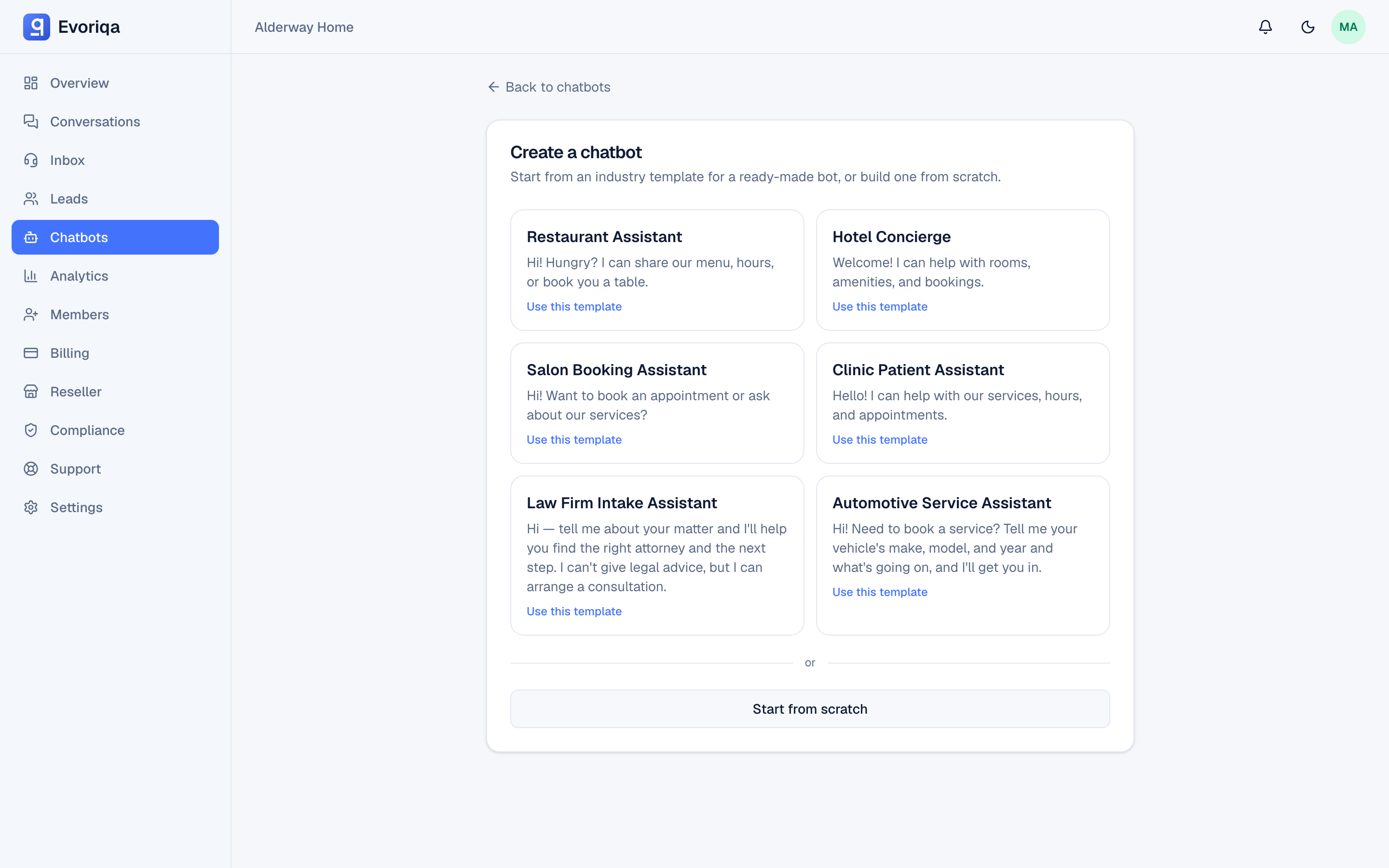
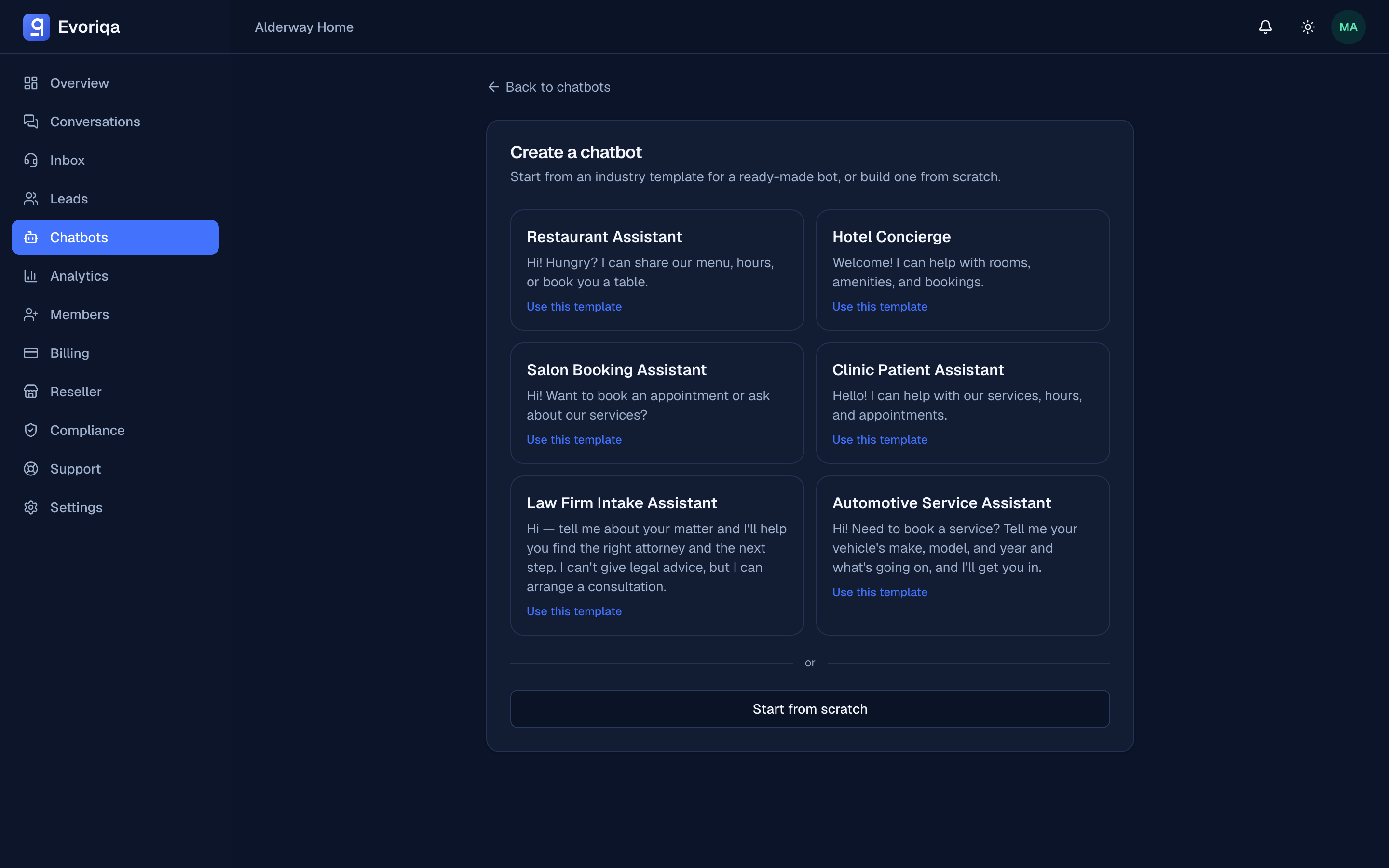
Prefer to start from a worked example? See Start from a template, which seeds the bot's prompt, FAQ, and sample documents for a vertical.
The public ID
Every chatbot is created with a unique public ID of the form cb_…. It is what the embed script passes as data-chatbot-id, and it never changes — you can rename the chatbot freely without breaking a live embed.
The public ID is not a secret, and it is not an API key. Access is controlled by the chatbot's status and its allowed-domains list, not by hiding the ID. API keys are a separate credential — see Authentication.
The setup checklist
A new chatbot shows a three-step checklist:
- 1Knowledge — add at least one source so the agent has something to answer from. See Knowledge base overview.
- 2Appearance — brand the widget. See Appearance.
- 3Install — copy the embed snippet onto your site. See Install the widget.
The checklist is a progress tracker, not a gate: you can embed a chatbot with no knowledge (it will fall back on every question), and you can tick a step by hand if you completed it another way.
Status: active and inactive
A chatbot is either active or inactive.
- Active — serves visitors on the widget and on every connected channel.
- Inactive — stops answering. The embed stays on your site and the chatbot, its knowledge, and its history are all kept.
Only active chatbots count against your plan's chatbot limit, so deactivating a seasonal bot frees a slot without deleting anything. To change several at once, see Bulk actions.
Downgrading a plan can deactivate chatbots automatically: the newest bots over the new limit are deactivated first, so the ones your customers have been using keep serving. Upgrading again reactivates them, oldest-deactivated first, up to the new limit. A chatbot you switched off by hand is never reactivated for you.
Where to go next
Last updated